This guide is for PlayActive site admins — the people who look after every centre from the back office. From the admin you can approve new centres, add people to a centre, change their roles, move who's in charge, and remove members.
It also explains something important that the centre-facing guide deliberately hides: the real model underneath, and why what a director sees is a simplified version of it.
First, the thing directors never see
The centre portal is intentionally simple. A director sees themselves as the Director, their staff as Educators, and anyone else who signed up as a Pending account. That's the whole vocabulary we give them.
Underneath, the model is slightly richer. The person in charge actually holds a special owner marker on top of being a director; a “pending account” is really just a second director who isn't the owner. We hide all of that from directors on purpose — the word “owner”, the idea of two directors — because it would only confuse someone who just wants to run their centre. As a site admin, you work with the real model, so it helps to see both side by side:
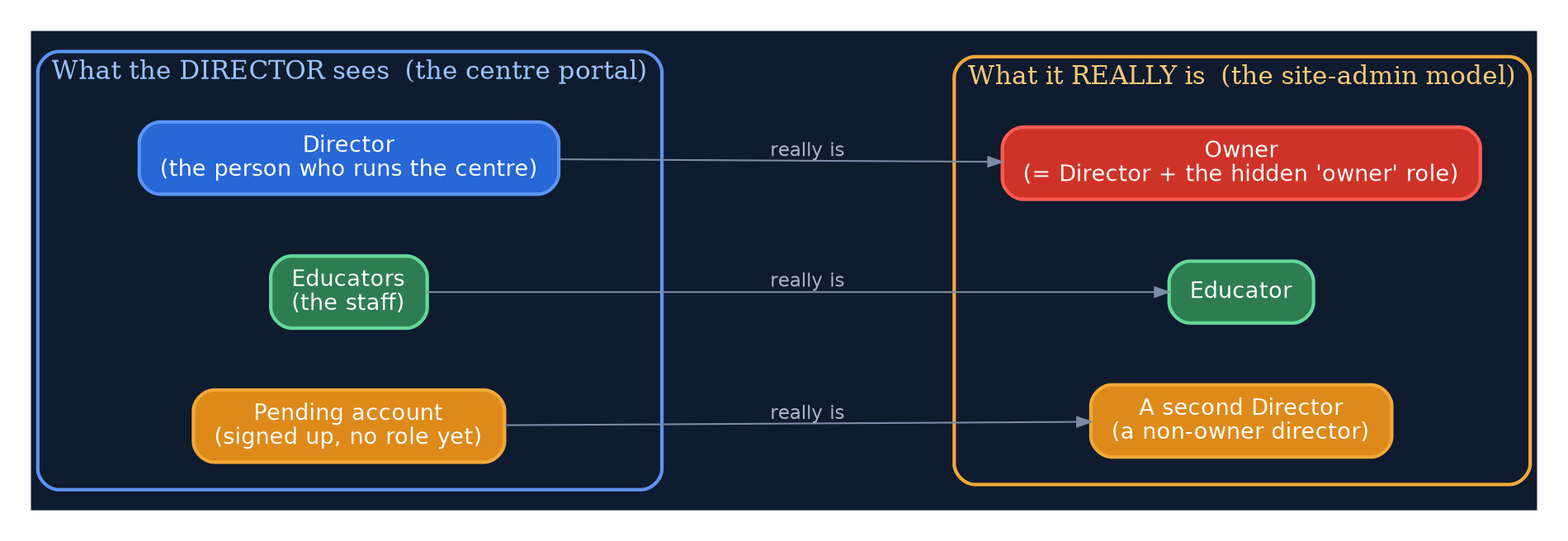
The friendly portal view (left) and the real model you work with (right).
Why the “owner” idea exists at all
Every centre needs exactly one person who is trusted with the sensitive things — managing members, invitations and billing. Rather than trust every director with that, the system marks just one of them as the owner (the account admin). That marker is what the portal presents simply as “the Director.” It's why a centre can never end up with two people both thinking they're in charge, and why handing over is a deliberate, one-at-a-time action.
Where the site-admin tools live
Everything is under Organisation Management in the left menu of the Wagtail admin. It lists every centre with its status, membership tier and payment date. You can search by the centre's name, or by any member's email address — handy when a director contacts support and you only have their email.
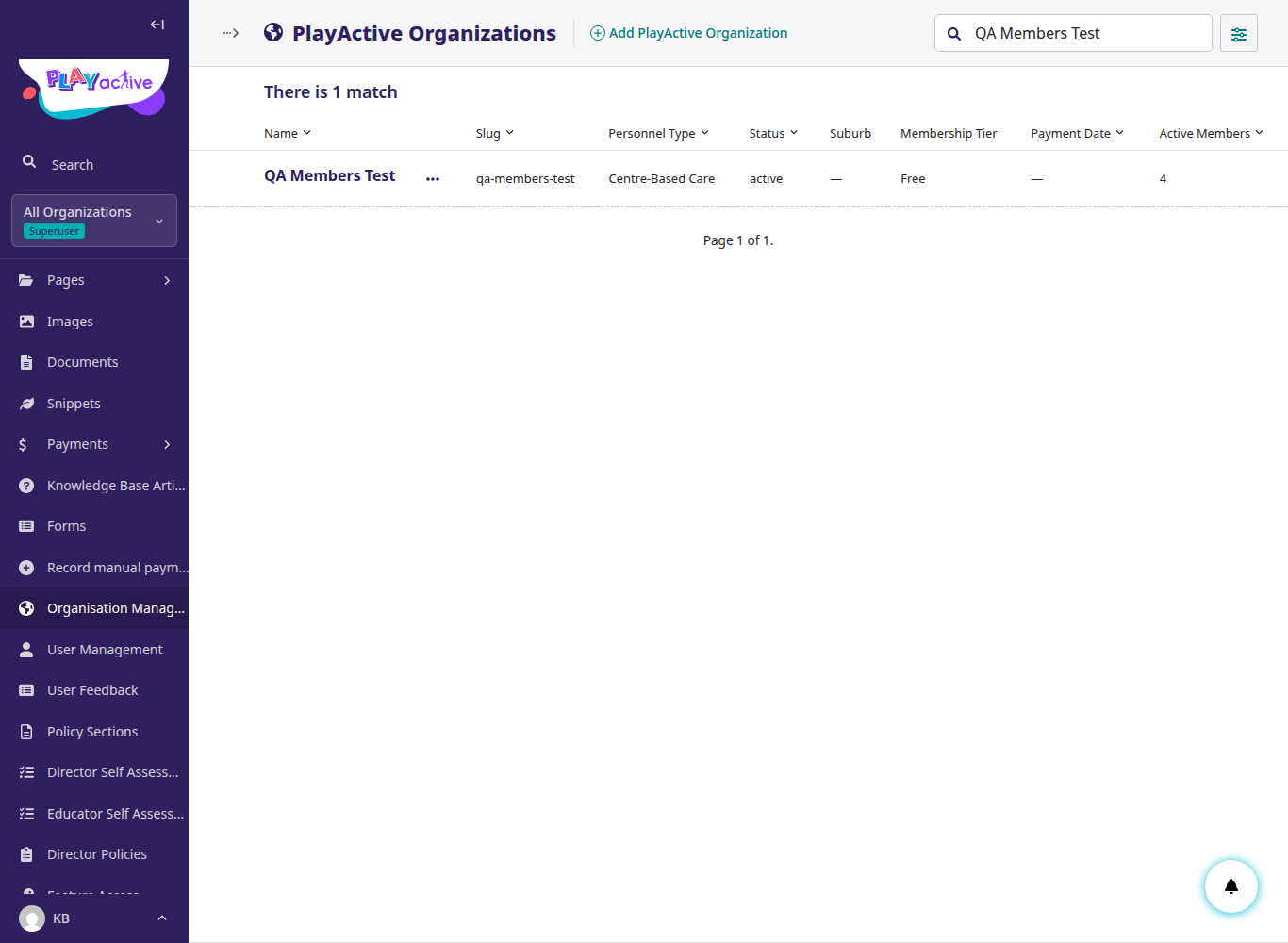
Organisation Management — the list of every centre.
The centre detail page
Opening a centre gives you a tabbed view. The Overview tab holds the basics, including the all-important Status. Other tabs — Members, Invitations, Onboarding, Director policies, Self-assessments, Courses and Membership — give you the full picture of that centre.
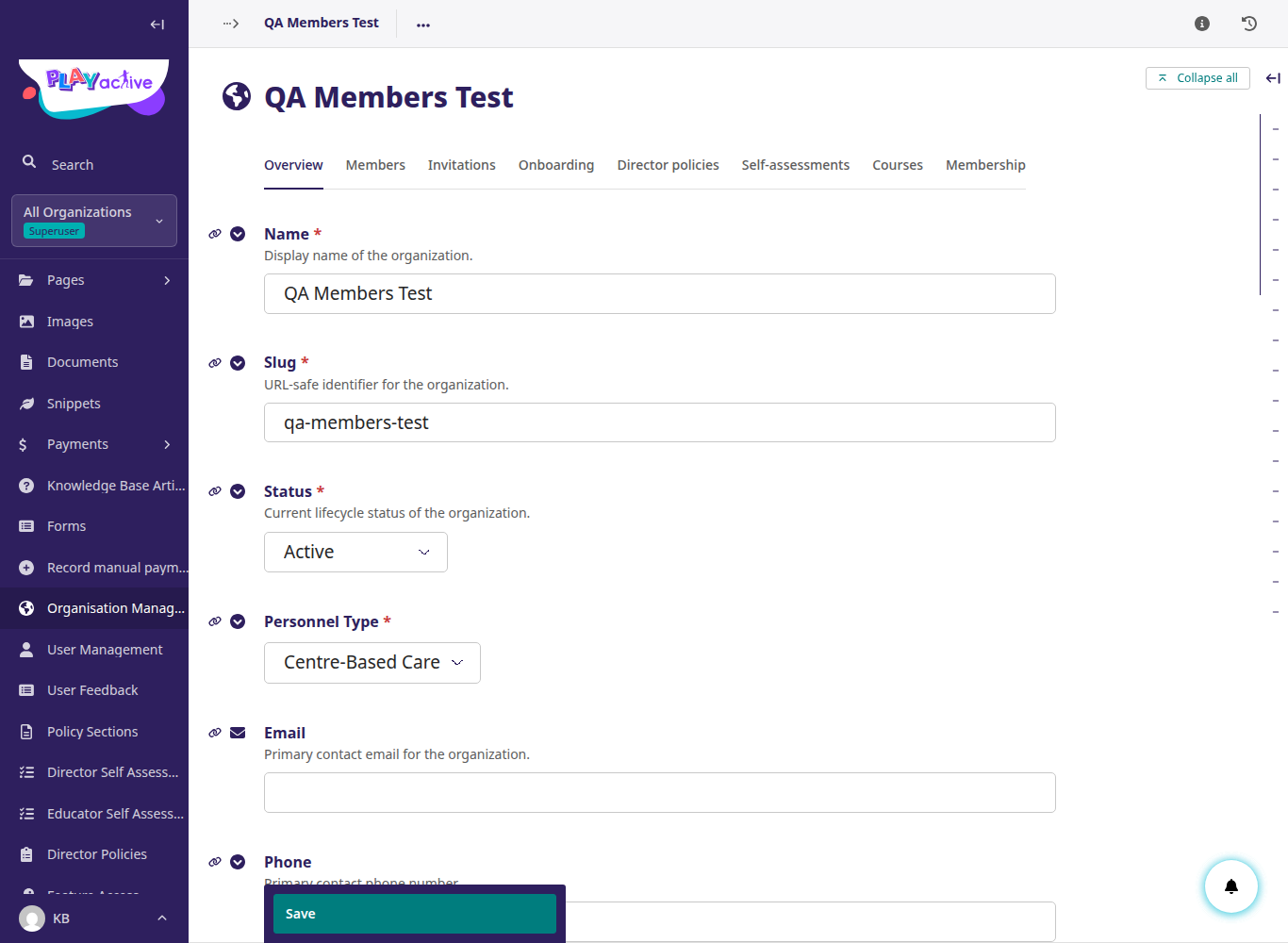
The Overview tab. Status is how you activate (approve) a centre.
The Members tab — your control panel
This is where the people-management happens. From here you can + Add member, and on each person's row you can change their role, remove them, or transfer ownership to them. The same team is shown here that the director sees in their portal — but with the real roles (Owner, Director, Educator) on display.
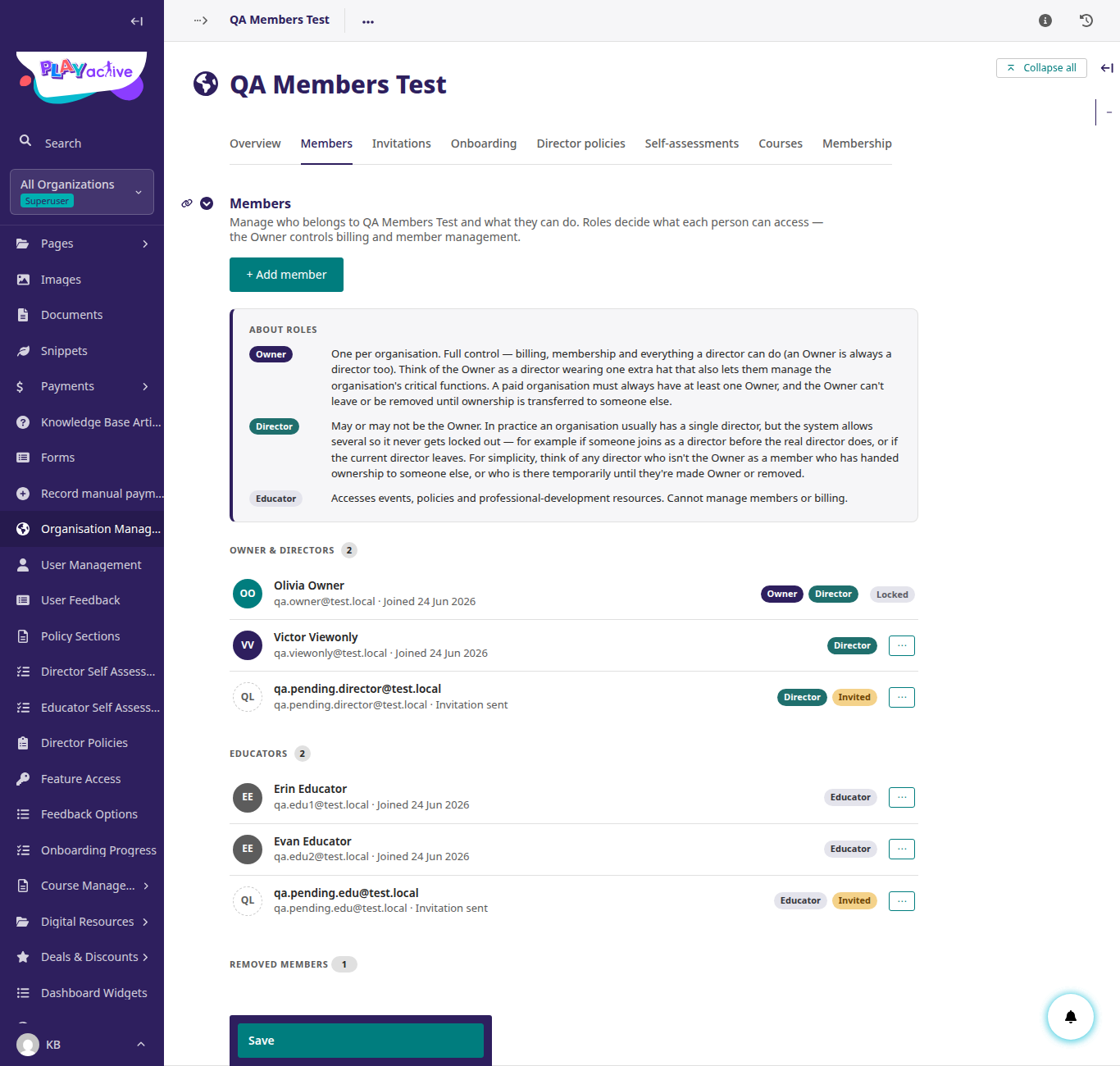
The Members tab, where add / role / remove / transfer all live.
Customising what directors see
The friendly wording on the centre portal isn't hard-coded — you can tailor it from Settings → Portal Display Settings. The most useful controls:
- About panel title & subtitle — the heading and one-liner at the top of Manage Members.
- About panel icon colour — the accent colour of that panel.
- Role rows — the short “what a Director / Educator can do” explanations, each with its own label, colour and description. Add, edit or reorder them.
- Transfer notice — the wording shown in the “Leaving the service?” box, so you can phrase the handover in your own voice.
These let you keep the directors' experience on-brand and in plain language without touching any code.
Managing members — the full picture
The map below covers every member action available to you on a centre, including the guardrails (which we explain underneath). Use it as the quick reference; the sections after it walk through each branch.
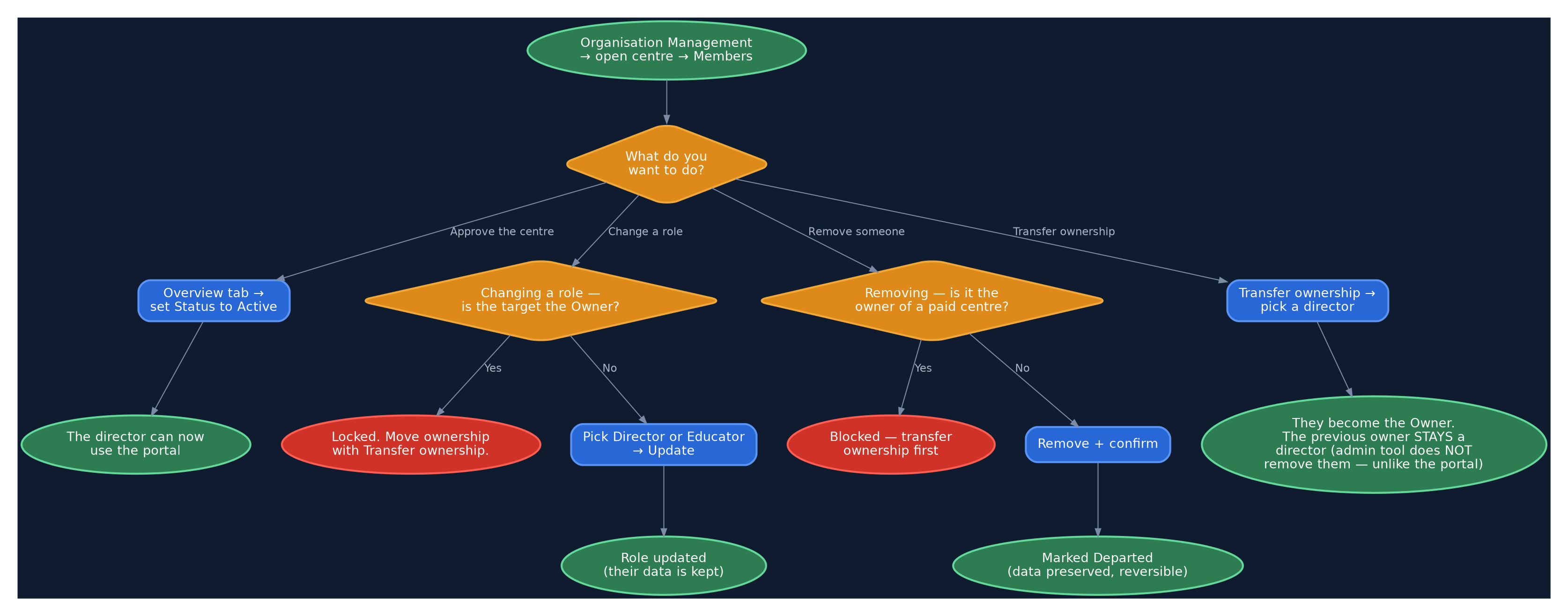
Every site-admin member action, as one decision map.
Approving a new centre
When a director registers a brand-new centre, it's created in Pending review — the director can sign in but the portal (and Manage Members) stays locked until you give the go-ahead. To approve it, open the centre, go to Overview, set Status to Active and Save. The director can now use everything.
Adding an existing user to a centre
On the Members tab, + Add member searches accounts that already exist (by name or email) and drops them straight into the centre with the role you choose. Use this when someone already has a PlayActive account and just needs to be attached to a centre. (If you want them to be the person in charge, don't add them as a director here — use Transfer ownership instead, so the centre keeps exactly one owner.)
Changing a member's role
From a member's row you can switch them between Educator and Director. One thing the role control deliberately won't let you do is set someone as the owner — promoting a person to director here does not put them in charge. That only happens through Transfer ownership, which keeps the “one owner” rule airtight.
Transferring ownership — and the key difference from the portal
Transfer ownership moves the account-admin (owner) marker to another director. If you pick an educator, they're promoted to director first. The marker is taken off the current owner before it's given to the new one — so there's never a moment with two owners — and the centre's director data is brought together onto the new owner.
Here's the part that catches people out: in the site-admin tool, the previous owner stays on as a regular director. That is different from the centre portal, where a director who hands over is removed from the centre and deactivated. The stricter “one active director, the old one steps away” behaviour applies only to the self-service handover a director does themselves — when you move ownership as an admin, you're simply re-pointing who's in charge, and the old owner keeps their place on the team.
Removing a member
Remove marks a member as Departed — a soft delete. They lose access, but their record and data are kept, so they can be re-added or re-invited later. The one guardrail: you can't remove the owner of a paid centre directly, because that would leave a paying centre with no one in charge. Transfer ownership to another director first, then remove if you still need to.
The rules, in one place
- Exactly one owner per centre, enforced at the data layer — you can't accidentally create two.
- Ownership only moves via Transfer ownership — never by editing a role.
- You can't strip the owner of a paid centre — hand the centre over first.
- Removals are reversible (soft delete; data preserved).
- Admin transfer keeps the old owner as a director; the portal handover removes and deactivates them. Same rules underneath, different intent.