If you run a play centre on PlayActive, Manage Members is your home base for the people in your service. It's where you add educators, see who has signed up, and — if the day ever comes — hand the centre to someone else.
This guide explains the page from the ground up: what it's for, who the people in your centre are, what every section does, the rules that keep your centre safe, and a few real-life situations and how to handle them. No technical knowledge needed — we'll keep it plain.
Why this page exists
A play centre is run by one person. That person is responsible for the team, the invitations, the policies and the billing — and PlayActive needs a single, simple place to do all of that without juggling settings in different corners of the site. Manage Members is that place. It's deliberately built so you only ever think about your people, never about the machinery underneath.
Who's who: the people in your centre
There are only three kinds of person you'll ever see, and each one is shown with a clear label:
- Director — that's you: the one person in charge of the centre. There is exactly one director per centre.
- Educators — your staff. They can use events, policies and professional-development resources, but they can't manage the team, change roles or touch billing.
- Pending account — someone who signed up as a director for your centre when it already has one (you). Their account exists, but they have no access until you decide what to do with them.
The single most important rule on this whole page follows from that first point: a centre always has exactly one director. The role is handed from one person to another — it's never duplicated, and it's never left empty.
Why you're called “the Director” and nothing more
You might wonder why you're simply “the Director” rather than an “owner” or an “administrator.” That's on purpose. Underneath, the system does keep track of who's truly in charge — but we deliberately keep that wording out of your way so the page stays calm and clear. To you there is just the Director (you) and your team.
The diagram below shows the friendly view you get on the left, and the technical reality on the right. You only ever need the left-hand side — it's here purely so the picture makes sense.
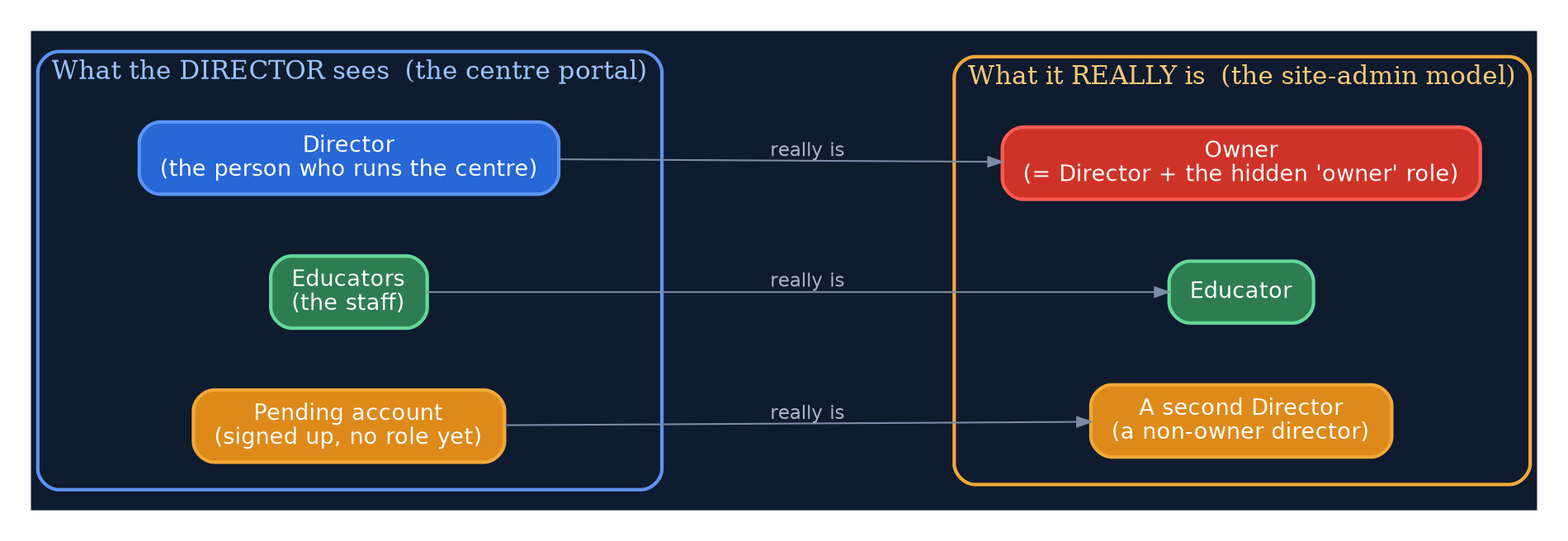
What you see in the portal (left) versus what's tracked underneath (right). You only need the left.
A tour of the page
Here's the whole screen. We'll walk through each part underneath, from top to bottom.
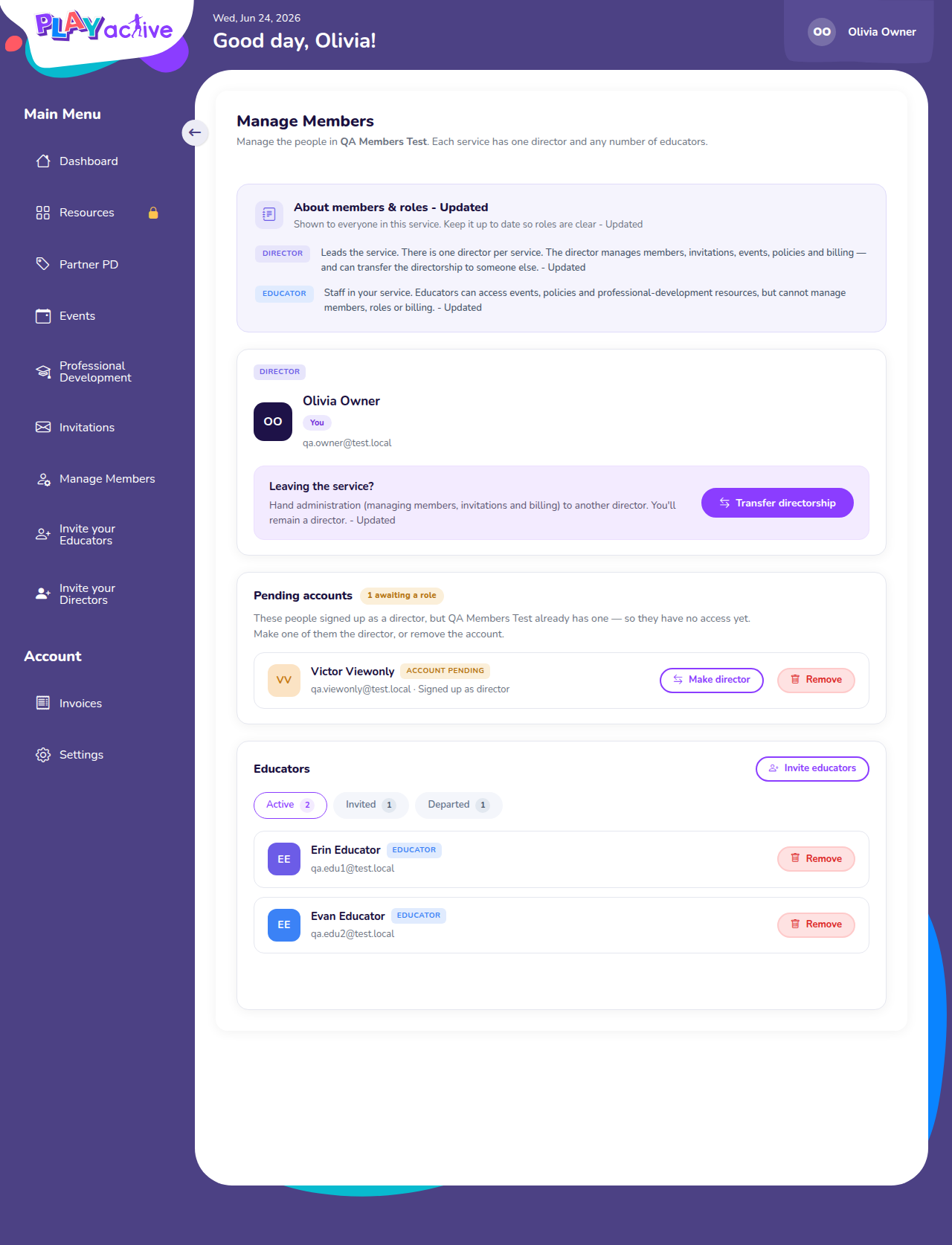
The Manage Members page, top to bottom.
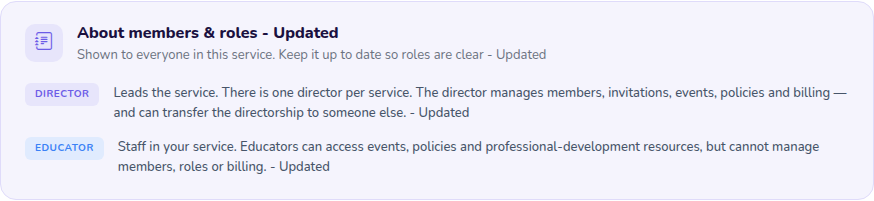
1. About members & roles
A short, friendly explainer at the very top. It describes what a Director and an Educator can do, in plain words, so anyone in your centre understands the roles at a glance. It's shown to everyone — its wording and colours are set up by PlayActive and can be tailored to your service.
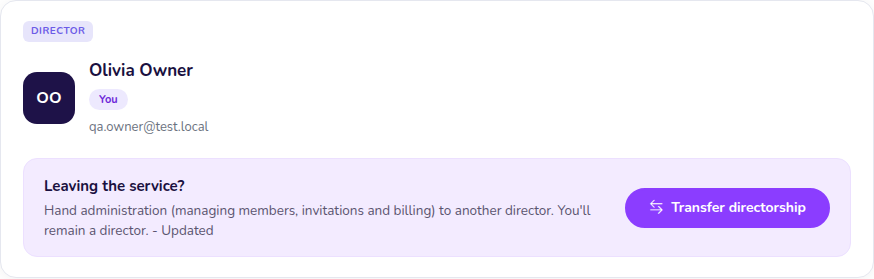
2. Your Director card & “Leaving the service?”
Your own card, marked You. Right beside it is a small Leaving the service? box with a Transfer directorship button — that's how you would hand the centre to someone else (covered in detail below). It's always there, because you can always pass the centre on, even if you're the only person in it right now.
3. Pending accounts
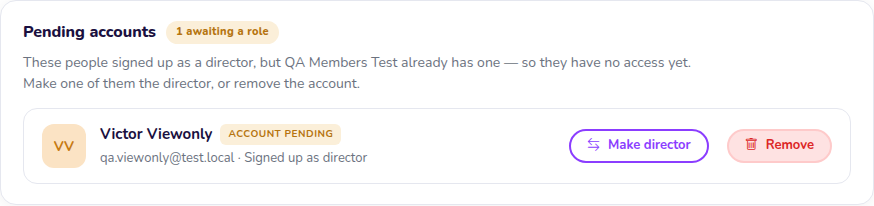
This section only appears when someone has signed up as a director for your centre. They show here with an Account pending badge and no access. You decide what happens: Make director (hand the centre to them) or Remove (delete the pending account). More on this below.
4. Educators — Active, Invited & Departed
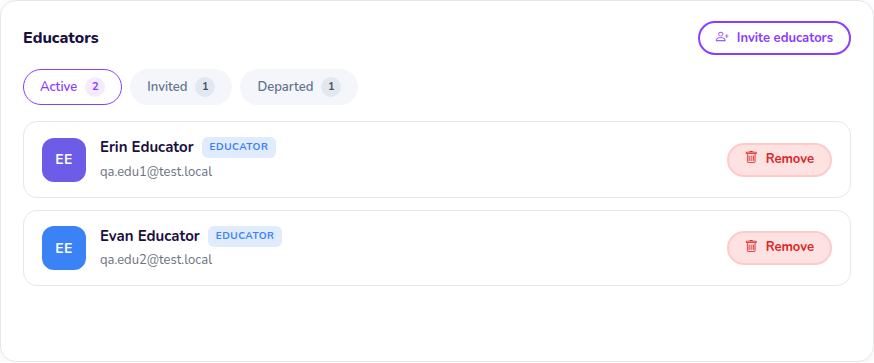
Your staff live here, split across three tabs:
- Active — educators who are in your centre right now.
- Invited — people you've invited who haven't accepted yet.
- Departed — educators you've removed (kept so you can bring them back).
Looking after your educators
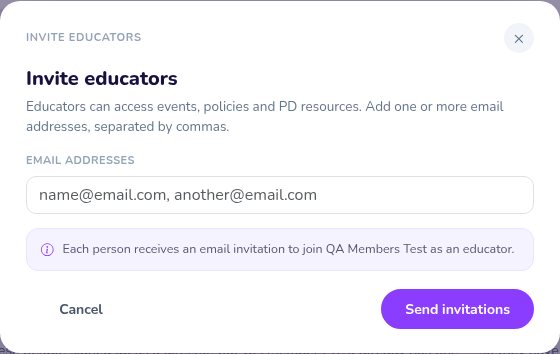
Inviting. Press Invite educators and enter one or more email addresses. Each person appears under the Invited tab as “pending” until they accept their email, then automatically moves to Active. From the Invited tab you can Resend the email or Revoke it if you invited the wrong address.
Removing. If an educator leaves, Remove them — you'll always be asked to confirm first. Removing is a gentle, reversible action: the person moves to the Departed tab rather than being erased, and a Re-invite button there brings them back with a fresh invitation whenever you like.
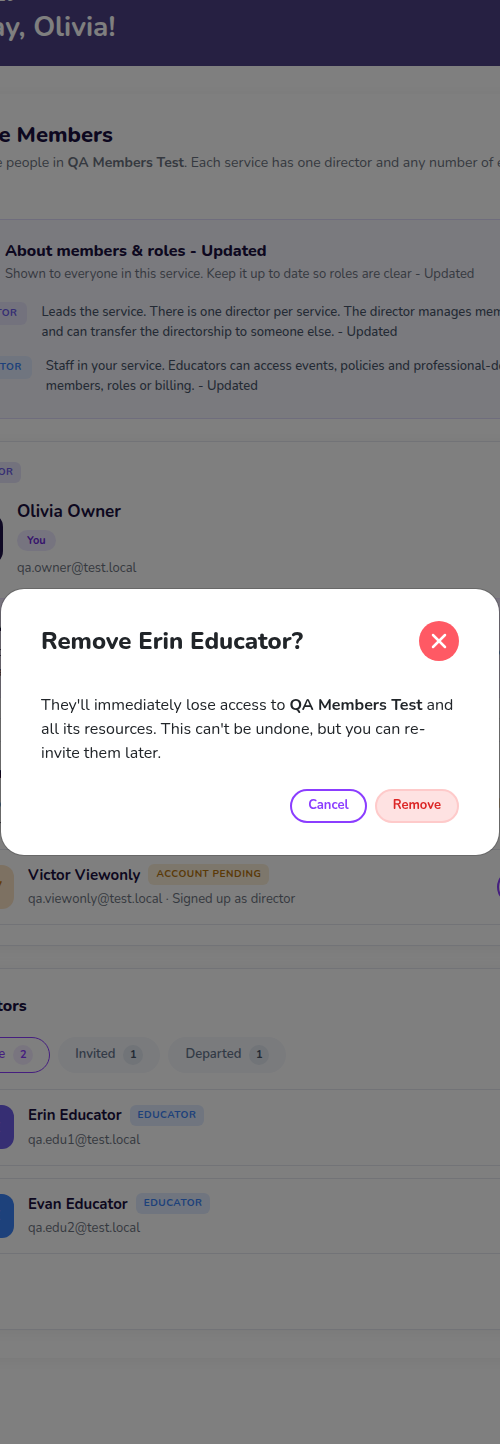
You're always asked to confirm before anyone is removed.
When someone else signs up as a director
Sometimes a colleague registers as a “director” for your centre — maybe they were meant to join as an educator, or maybe they're the person you're about to hand over to. Because your centre already has a director (you), they don't just walk in. They become a pending account, waiting on your decision.
Importantly, while they wait they cannot see your team. If they open Manage Members they get a polite notice that their role is pending, pointing them back to you — so your member list is never exposed to someone who hasn't been given a role.
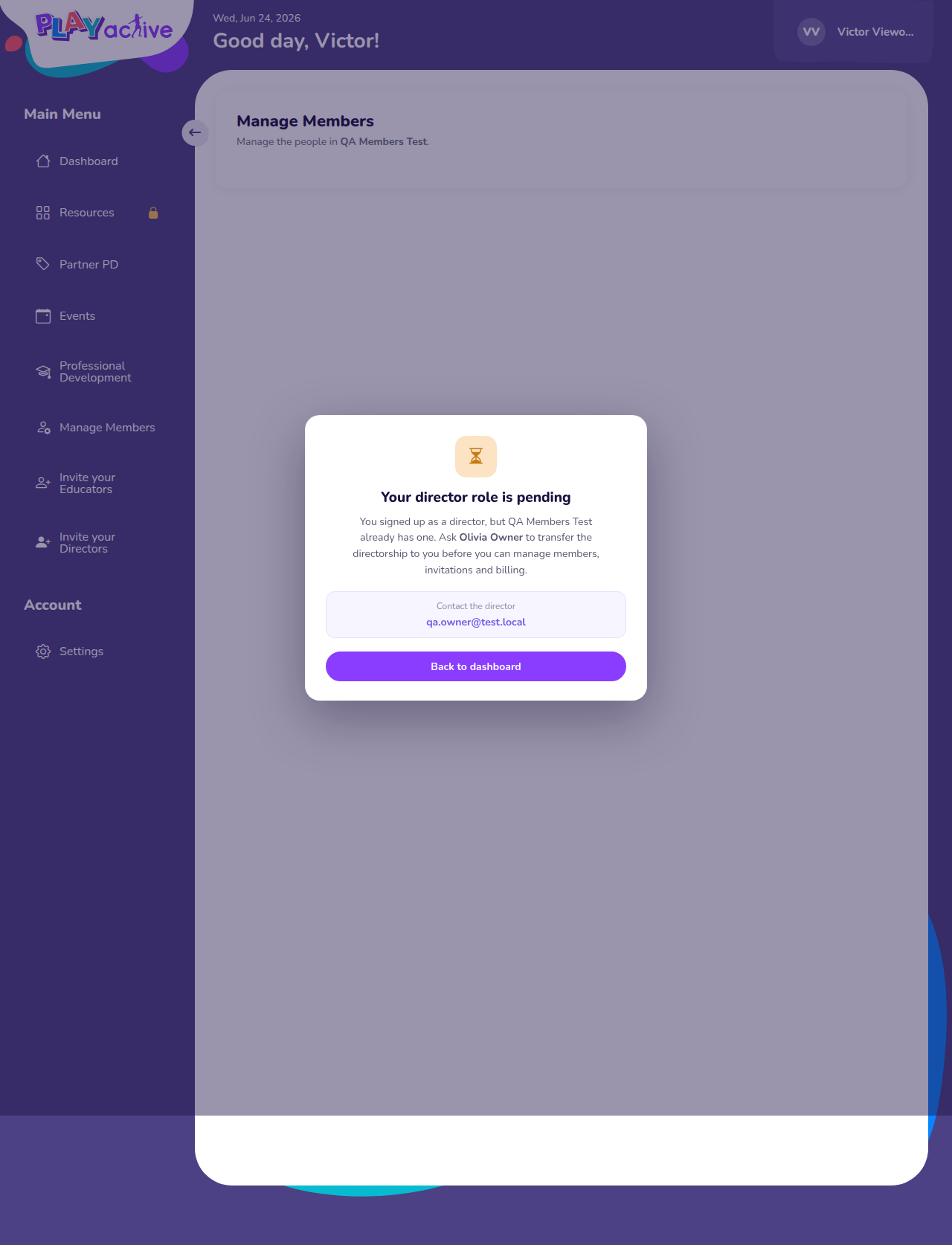
What a pending account sees instead of your member list.
Handing your centre over
This is the most consequential thing you can do on the page, so it's worth understanding clearly. There are two ways to do it, and one important thing they share.
- Hand over to someone already here — a pending-account director, or even an educator (who is promoted to director on the way). This happens immediately.
- Invite a brand-new director by email — for someone who isn't in your centre yet. This completes only when they accept.
Either way, PlayActive walks you through a short, three-step wizard — choose the person, review exactly what will happen, then confirm. The review step is deliberately blunt about the consequences:
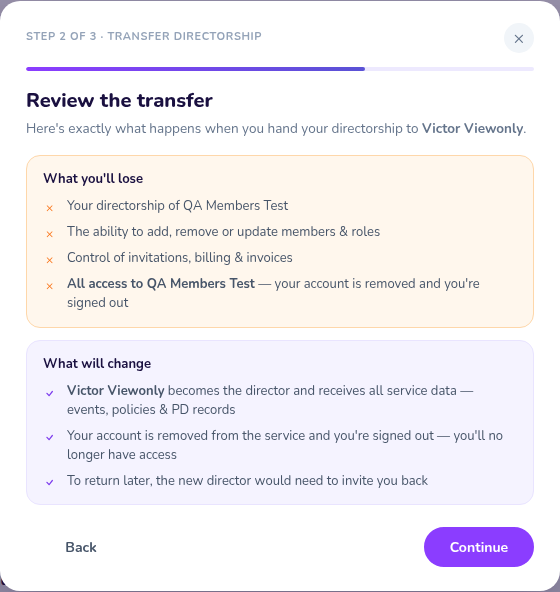
The review step spells out what you'll lose and what changes.
The part to take in: once a handover completes, you are removed from the centre and signed out. Everything that belonged to you as the director — events, policies, professional-development records, billing, even your onboarding progress — moves across to the new director, so nothing is lost and they don't have to start again. This is the “one director per centre” rule in action: for the new person to take charge, you step away.
The diagram below traces what actually happens to you.
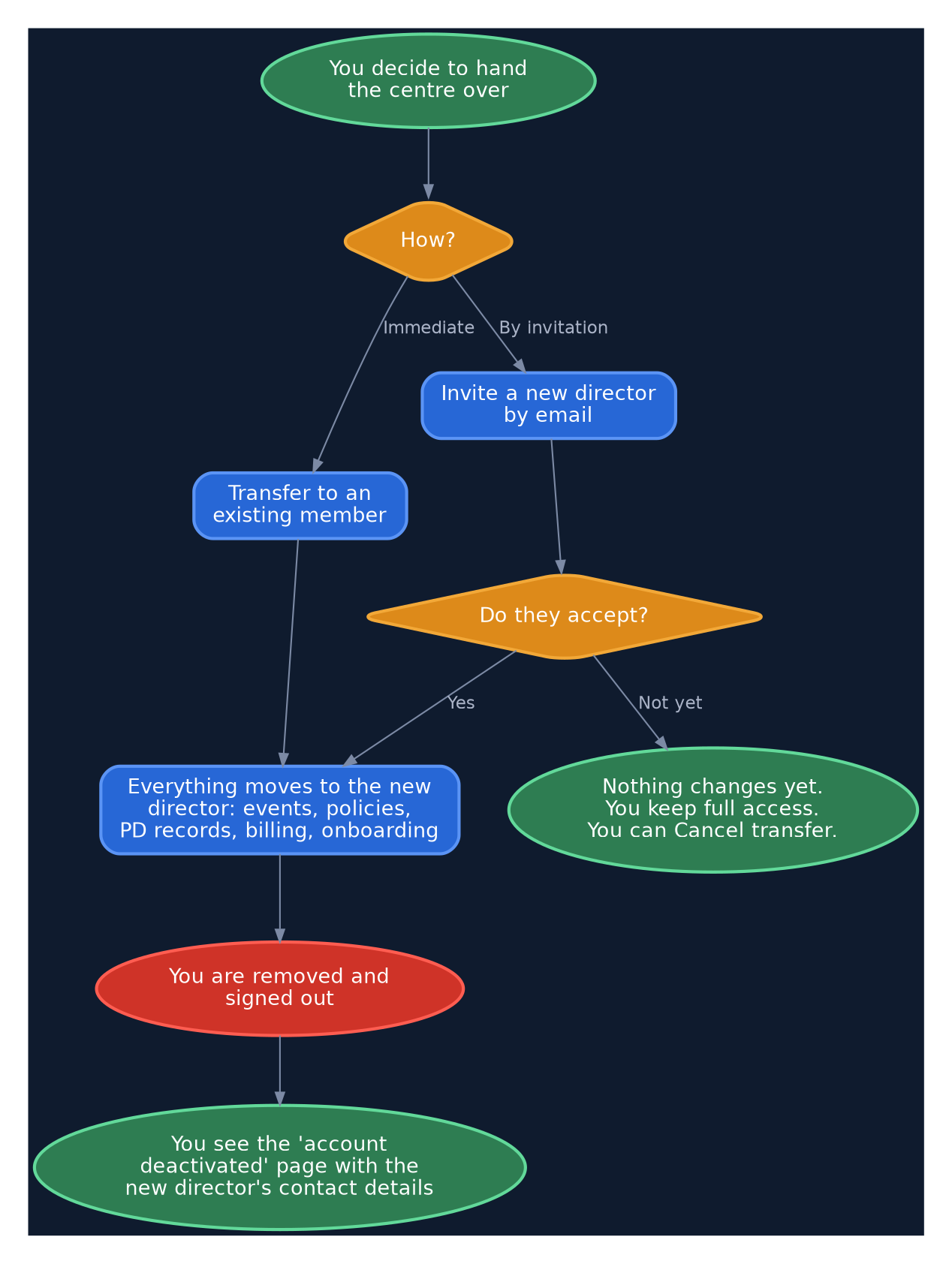
What happens to you when you hand the centre over.
If you chose to invite a brand-new director, nothing happens to you straight away. A Director transfer pending banner appears at the top of the page, and you keep full access until the other person accepts their invitation. You can call it off at any time with Cancel transfer, and you can only have one transfer waiting at a time.

While an invited director hasn't accepted yet, you stay in control.
Once a handover has finished, your next visit to PlayActive shows a full-screen Your account has been deactivated page. It names the new director and shows their email, so if you ever need access again you know exactly who to ask.
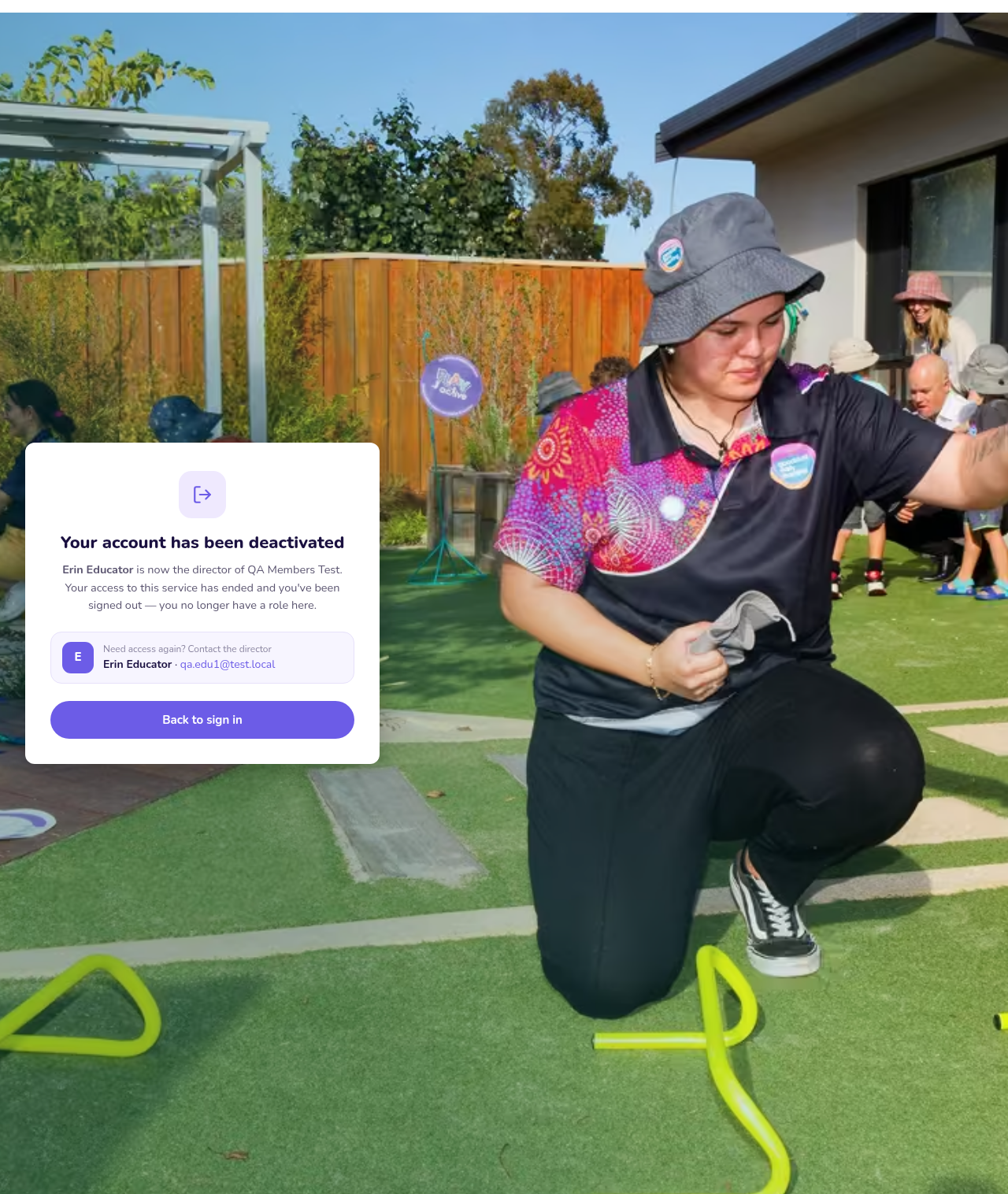
What you see after you've handed the centre on.
The rules that keep your centre safe
A few simple guardrails are built in so nothing surprising can happen:
- Always exactly one director. The role is handed over, never duplicated or emptied.
- Educators can't manage the team. Only you can invite, remove, change roles or hand over.
- Removing is reversible. Removed educators go to Departed and can be re-invited.
- Handing over is permanent for you. You're signed out; to come back, the new director re-invites you.
- One handover at a time. Cancel a pending transfer before starting another.
At a glance: what can I do here?
This map summarises every path on the page. Find what you want to do, and follow the arrows.
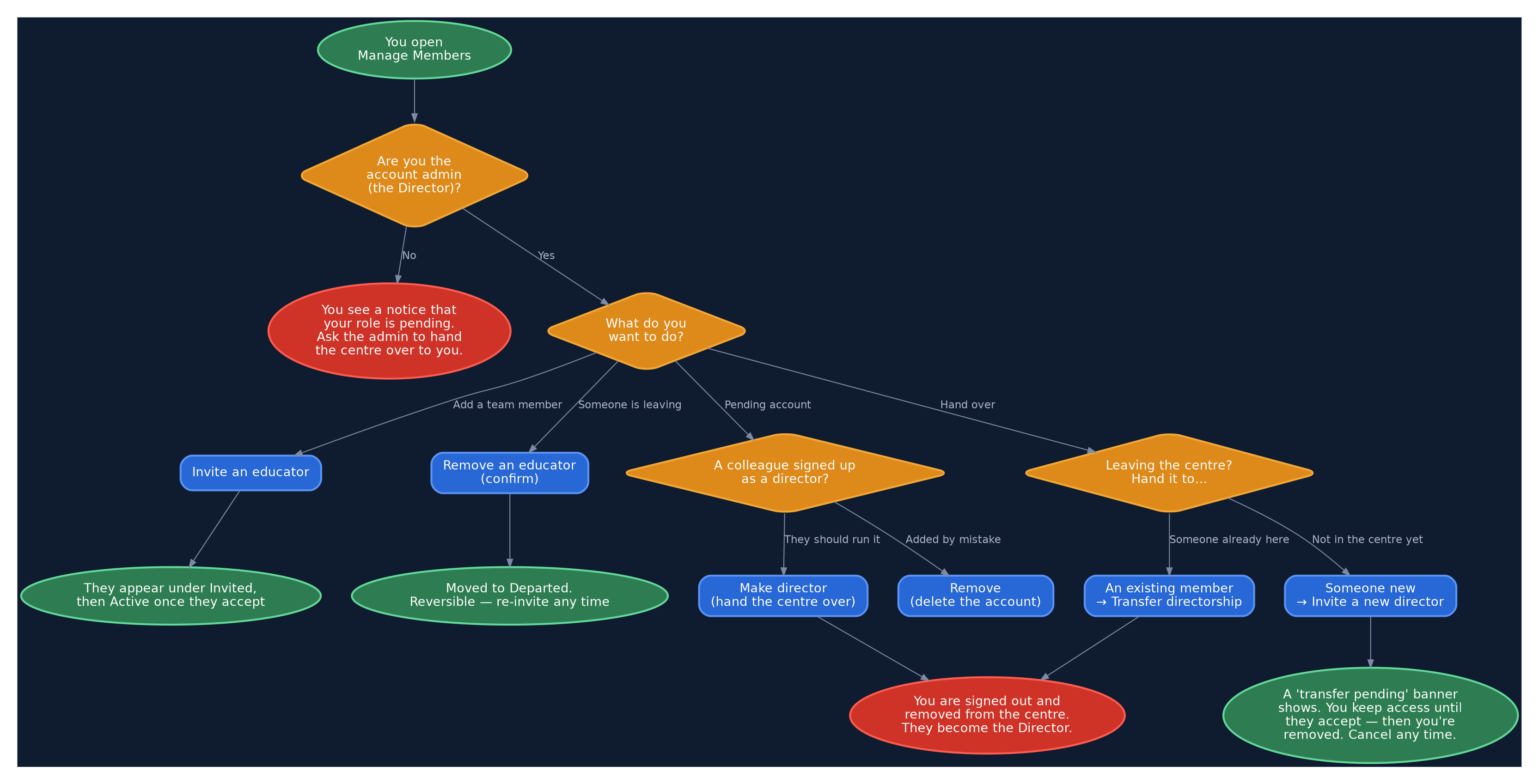
Every action on Manage Members, as a single decision map.
Everyday situations
- “An educator is leaving.” Educators tab → Remove → confirm. Bring them back later from Departed.
- “A colleague signed up as a director by mistake.” They're under Pending accounts. Remove them, then invite them properly as an educator.
- “I'm leaving and a co-worker is taking over.” Use Transfer directorship (or Make director on their pending row). Remember you'll be signed out the moment it completes — so finish anything you need to first.
- “I invited the wrong person to take over.” Press Cancel transfer on the banner. Nothing had changed yet.